

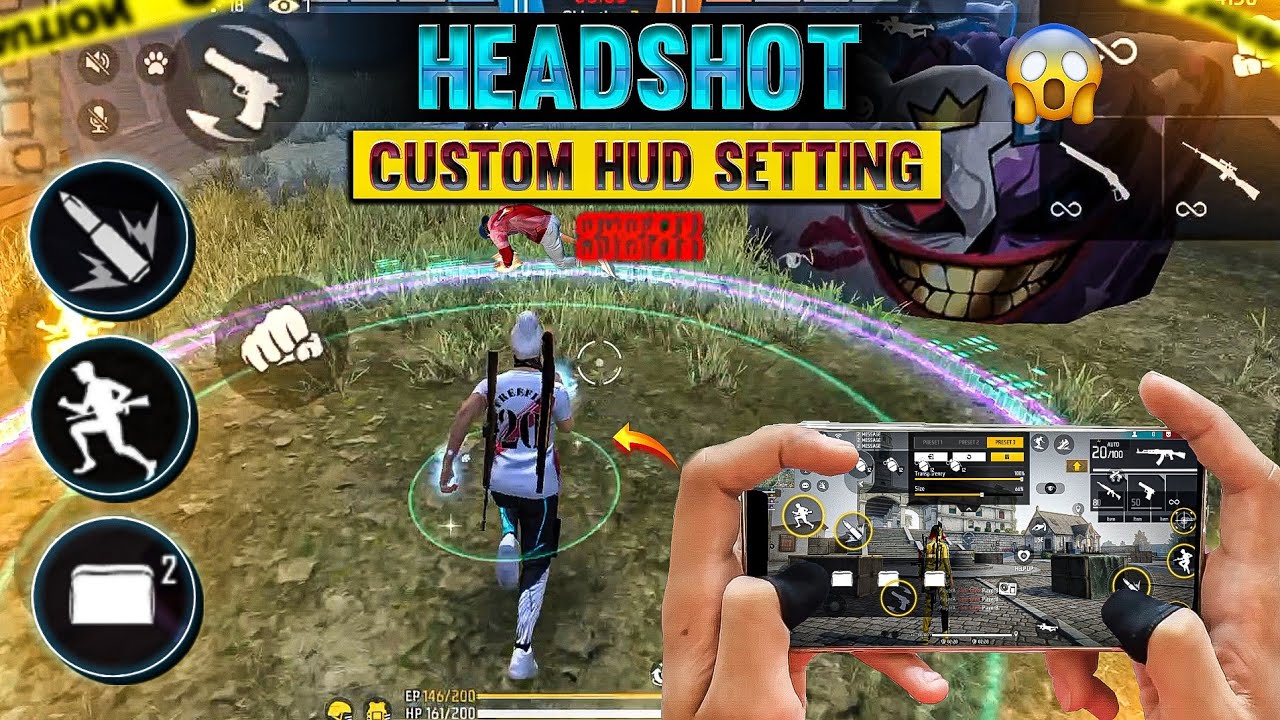
Free Fire, every millisecond counts, and having an optimized interface can make the difference between victory and defeat. This is where Free Fire Custom HUDs (Heads-Up Displays) come into play. A HUD refers to the on-screen layout of buttons, controls, and interactive elements that players use during gameplay.
By personalizing the HUD, players can enhance their accuracy, improve movement efficiency, and execute complex strategies more seamlessly. For example, repositioning the fire button closer to the thumb or enlarging the sprint control can make fast-paced combat smoother and more responsive.
What is a Custom HUD in Free Fire?
A Custom HUD is a personalized in-game interface layout that allows players to adjust the size, placement, and function of various buttons and controls. Unlike the default layout, which is standardized for all users, custom HUDs provide flexibility. Players can move fire buttons, jump keys, sprint controls, and other interactive elements to positions that feel most natural to their gameplay style.
The main components of a Free Fire HUD include:
- Movement joystick – Controls the character’s movement direction.
- Fire button – Used for shooting or attacking opponents.
- Jump and crouch buttons – Essential for evasive maneuvers.
- Reload and weapon switch buttons – Crucial for maintaining combat efficiency.
- Mini-map – Provides situational awareness and enemy positioning.
- Skill and gadget buttons – Enables quick activation of character skills or consumables.
By customizing these components, players can significantly reduce reaction time, making combat smoother and more efficient.
Why Custom HUDs Are Important?
The importance of custom HUDs in Free Fire cannot be overstated. Here are several reasons why customizing your HUD is a game-changer:
- Faster Reaction Time
A well-placed fire button or skill key reduces the distance your fingers need to travel during combat. This can shave off critical milliseconds, which can be the difference between winning and losing a fight. - Comfortable Gameplay
Everyone’s hands and devices are different. Custom HUDs allow players to create a setup that is ergonomically comfortable, preventing fatigue during long gaming sessions. - Better Accuracy
Misplaced buttons often lead to accidental movements or missed shots. Custom HUDs ensure that controls are intuitive, which increases aiming accuracy and overall combat performance. - Adaptable for Different Devices
Whether you play on a small smartphone screen or a large tablet, custom HUDs allow you to adjust button sizes and placements to suit your device. - Professional Edge
Many pro Free Fire players rely heavily on custom HUDs to gain a competitive advantage. Observing their HUD setups can help aspiring players optimize their own interface.
How to Create the Perfect Free Fire Custom HUD
Creating the perfect custom HUD requires understanding your gameplay style, experimenting with layouts, and fine-tuning placements over time. Here’s a step-by-step guide:
Step 1: Access the HUD Settings
- Open Free Fire and go to Settings > Controls > Customize HUD.
- The screen will display the default button layout.
Step 2: Identify Your Priorities
- Determine which buttons you use most frequently in combat.
- Prioritize placing fire buttons, jump, and sprint keys in accessible positions for quick reflexes.
Step 3: Adjust Button Size
- Increase the size of frequently used buttons to avoid misclicks.
- Reduce the size of less-used controls to free up screen space.
Step 4: Optimize Placement
- Place movement controls where your thumb naturally rests.
- Fire buttons should be within easy reach without shifting your grip.
- Skill and gadget buttons can be positioned near the edges for quick activation.
Step 5: Test Your HUD
- Enter training mode or a live game to test your HUD.
- Pay attention to comfort, accuracy, and reaction time.
- Make small adjustments as needed.
Step 6: Save Multiple Layouts
- Some players benefit from having multiple HUD setups for different gameplay modes, such as solo, squad, or ranked matches.
Read Also: Free Fire BR Ranked Season 35 Release Date
Popular Custom HUD Layouts
While custom HUDs are highly personal, certain layouts have proven popular among top Free Fire players:
- Pro Player Layout
Features large fire buttons on both sides, with sprint and jump keys positioned for quick access. Minimap is slightly enlarged for situational awareness. - Minimalist Layout
Reduces on-screen clutter by making buttons smaller and placing them at the edges, giving a clearer view of the battlefield. - Aggressive Layout
Designed for aggressive playstyles, with multiple fire buttons and skill keys easily reachable for fast-paced combat. - Comfort Layout
Focuses on ergonomic placement, reducing finger strain during long gaming sessions. Perfect for casual players.
Tips for Optimizing Your Custom HUD
- Use Training Mode
Always test your HUD in the training range before jumping into ranked matches. Adjust placement until it feels natural. - Learn from Pros
Watch professional Free Fire streams to see how they position their HUD buttons. Adapting proven layouts can improve your gameplay. - Avoid Overcrowding
Too many buttons on-screen can cause confusion. Focus on essential controls for clarity. - Adjust for Screen Size
Larger screens allow more flexibility, while smaller devices may require compact layouts to avoid obstructing the view. - Experiment Constantly
Your HUD is not static. As you improve and refine your playstyle, your custom HUD should evolve with you.
Advantages of Using a Custom HUD
- Enhanced Speed: Quick access to crucial buttons improves reaction time.
- Precision: Accurate aiming and skill usage reduce mistakes.
- Comfort: Ergonomic setups prevent hand fatigue.
- Personalization: Tailor the interface for your unique style.
- Competitive Edge: Gain an advantage over players using the default HUD.
Common Mistakes to Avoid
- Cluttering the Screen
Adding too many buttons can obstruct vision and reduce efficiency. - Ignoring Comfort
Placing buttons in awkward positions can cause strain during long matches. - Not Testing in Real Matches
A HUD may feel good in practice but can fail under live match pressure. - Copying Without Adapting
While pro HUDs are helpful, don’t copy blindly. Adjust layouts to fit your hands and gameplay style.
Frequently Asked Questions
Can a Custom HUD make me play better?
Yes. By placing buttons strategically, you can reduce misclicks, improve aiming speed, and execute actions faster during intense combat situations.
Are there popular HUD layouts used by pro players?
Yes. Common layouts include the Pro Player Layout, Minimalist Layout, Aggressive Layout, and Comfort Layout, each designed for specific playstyles.
Can I use different HUDs for different game modes?
Absolutely. Many players create separate HUD setups for solo, squad, or ranked matches to optimize performance for each mode.
Will a Custom HUD work on all devices?
Yes, but you may need to adjust the layout depending on your screen size smaller devices require compact buttons, while larger screens allow more flexibility.
Is copying a pro player’s HUD a good idea?
You can use it as a reference, but it’s better to tweak it according to your hand size, device, and personal comfort.
How often should I update my HUD?
Regularly. As your gameplay improves or your device changes, tweaking your HUD ensures it continues to suit your needs.
Can Custom HUDs affect my competitive ranking?
Indirectly, yes. A well-optimized HUD improves reaction time and accuracy, which can lead to better in-game performance and higher rankings.
Conclusion
Free Fire Custom HUDs are more than just cosmetic adjustments they are essential tools for improving performance, comfort, and strategy. By customizing the HUD, players can optimize reaction times, enhance accuracy, and enjoy a gameplay experience tailored specifically to their needs. Whether you’re a casual player or an aspiring pro, spending time refining your HUD can make a tangible difference in your performance.
Remember, the best HUD is the one that fits your hands, your device, and your playstyle. Test different setups, observe professional players, and continuously tweak your layout.
